
Travel tip: Set your hotel keycard to give you directions when tapped on your iPhone
Tap your hotel keycard to your iPhone and make it your travel companion with helpful information instantly.

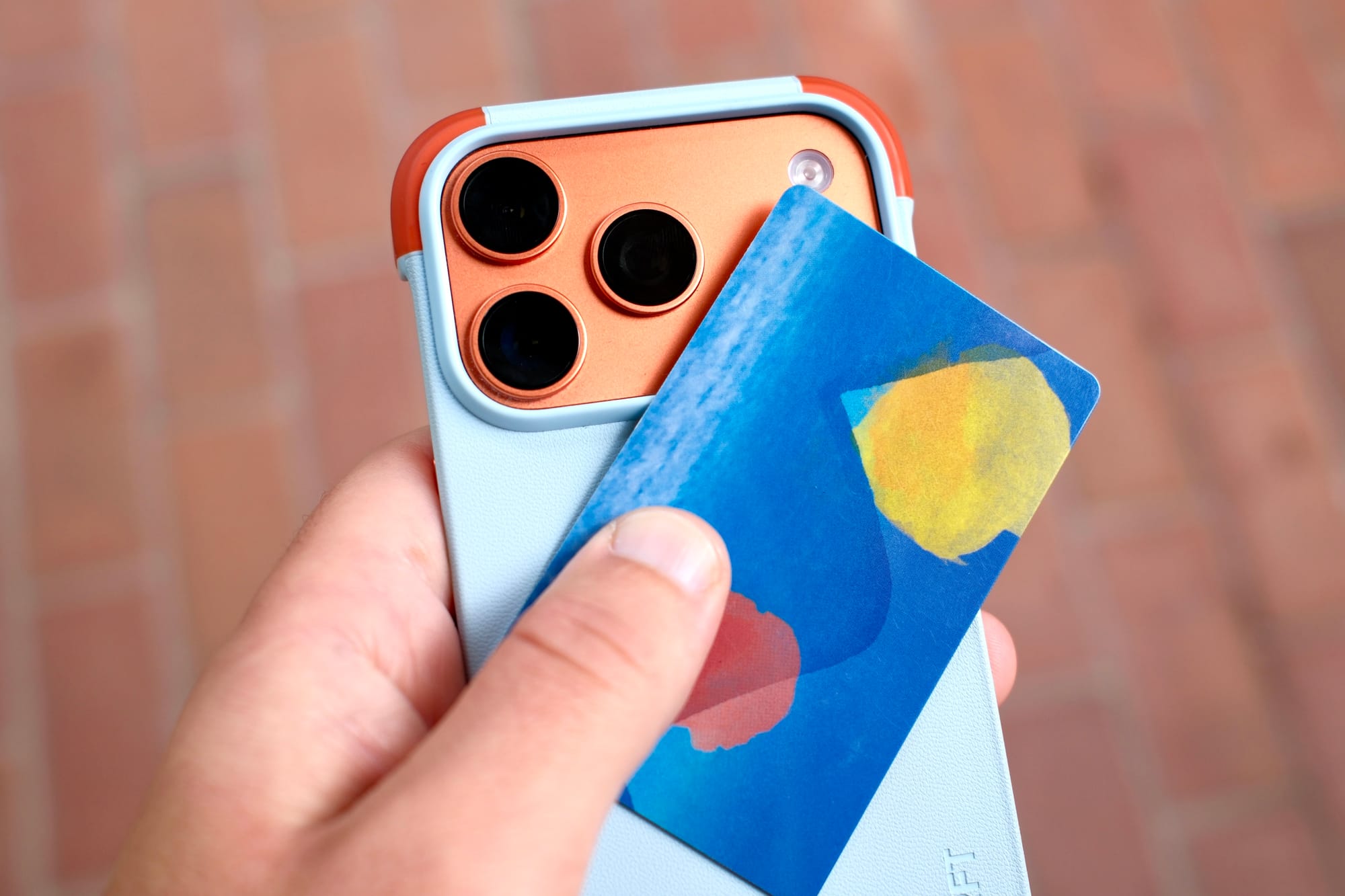
You’re not alone if you’ve ever quickly dropped off your bags in a hotel room before heading out to explore a new city. But doing that can result in spending time later trying to find your way back, or even digging through a buried email inbox to find the name of the hotel. There’s a simple trick I discovered where I can tap my hotel keycard to my iPhone to instantly get directions back to my room, without searching or even typing.
The way this works is by setting up an Apple Shortcut to launch directions back to your hotel. Then, you can use your hotel keycard as an NFC trigger for that Shortcut. Tap it to your phone and up pops directions from wherever you’re at back to your hotel.
It will take a few steps to set this up initially. But once you do, you can tweak it for each trip you take in the future. Once you’ve mastered the directions Shortcut, you can even set up multiple Shortcuts to launch when you tap your hotel key. So, you can get directions, the weather forecast, or other travel-related items without digging through your phone. Here’s how all this works and a step-by-step guide to set it up.
How to use your hotel keycard as an Apple Shortcut trigger
A quick note that to do this trick, you’ll need an iPhone XR from 2018 or newer, running iOS 13.1 or newer.
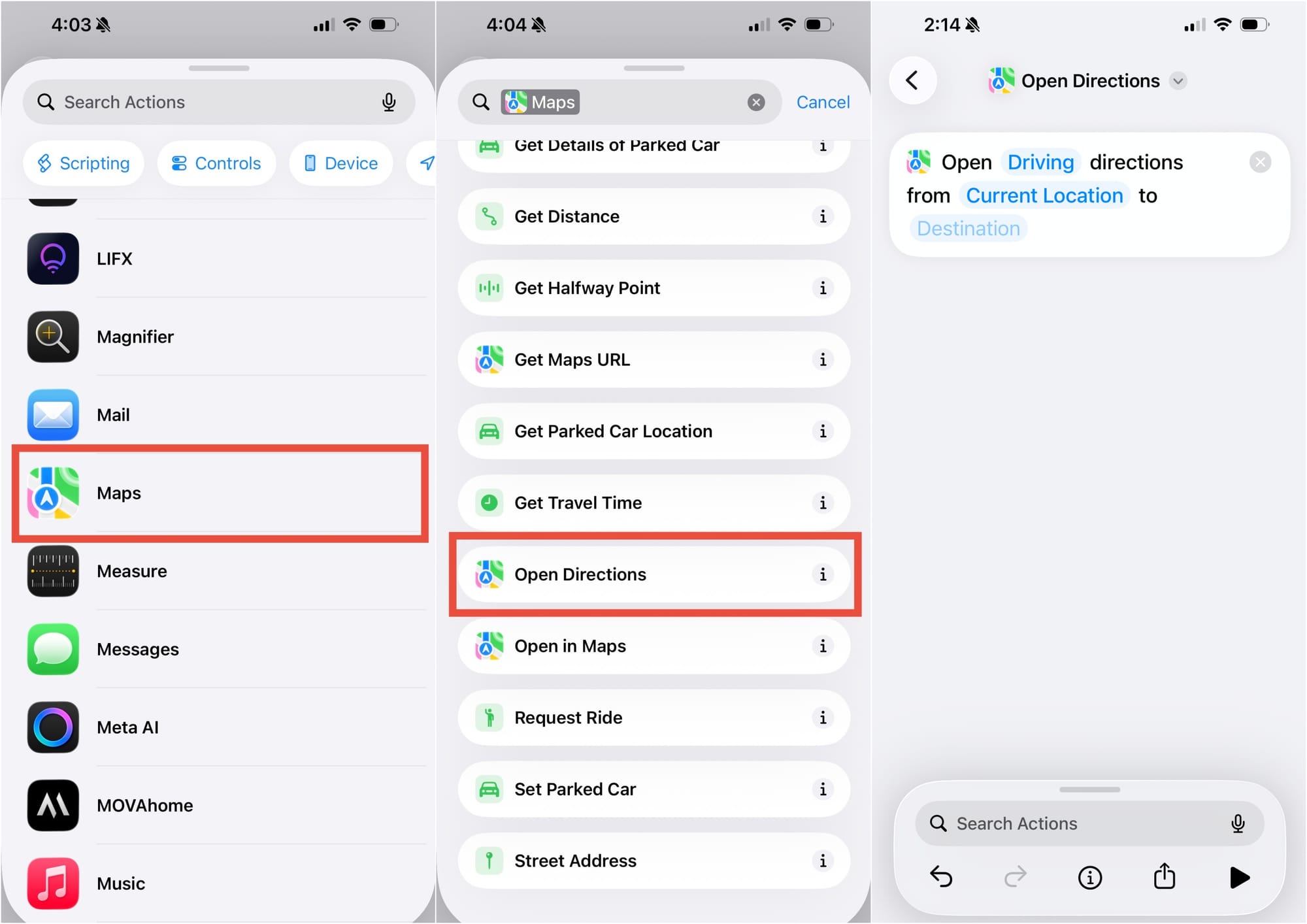
The first part is to create a Directions Shortcut. To start, open the Shortcuts app and then select the plus (+) sign in the top right corner.
Scroll down to Maps. Then select “Open Directions.”
By default, it will show “Open Driving directions from Current Location to Destination.” Tap on Destination and then search for the place you’re staying. If you’ll be primarily walking, then you can tap on Driving and change that to Walking.
Tap on the back arrow at the top, and you should see your “Open Directions” Shortcut at the top.
The second part of this is making your keycard trigger that Shortcut.
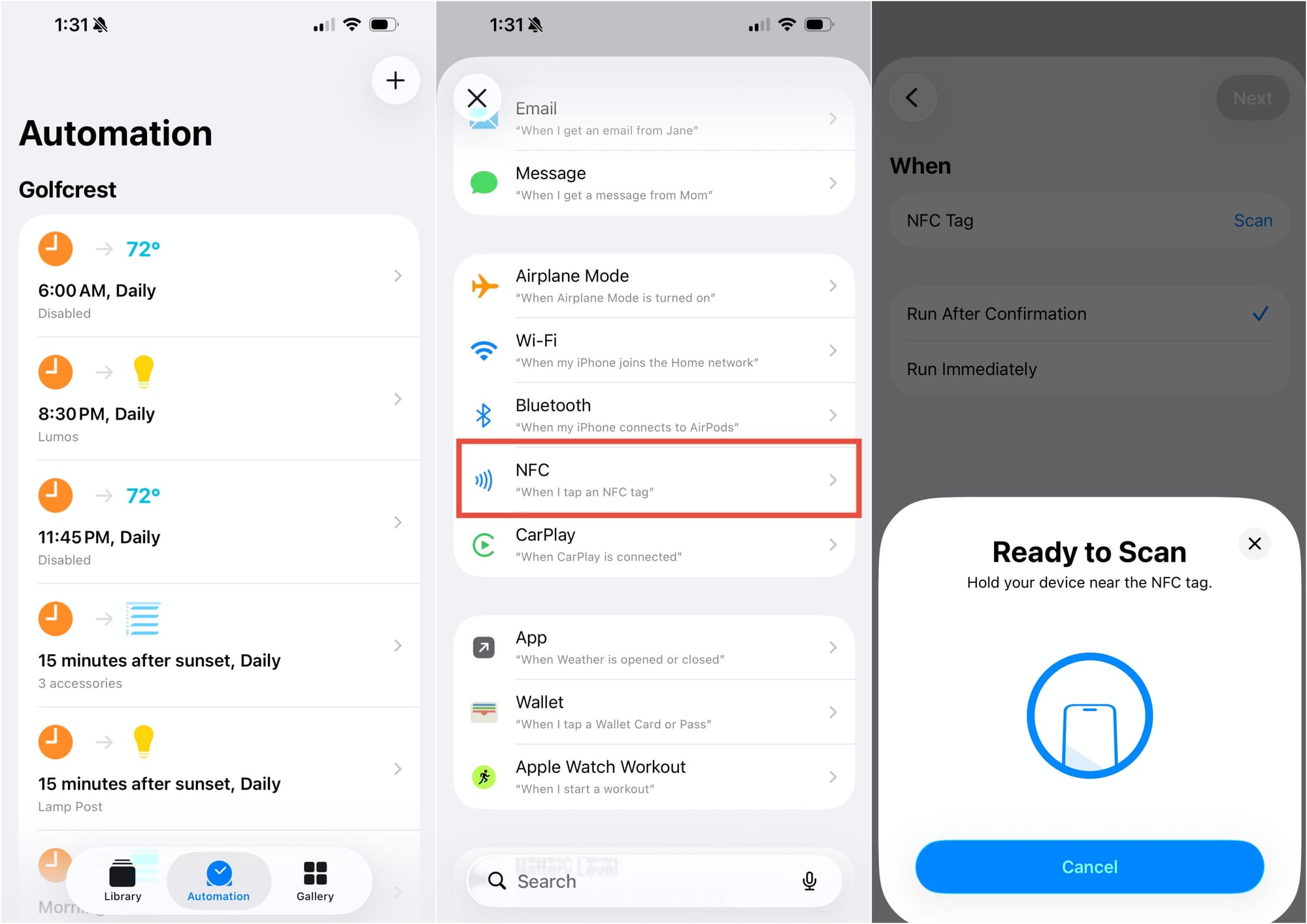
Along the bottom bar, tap on Automation. Then tap the plus (+) sign in the top right corner.
Scroll down and select “NFC.” On the screen where it says “NFC Tag,” tap on the “Scan” button.
When a “Ready to Scan” notification pops up, hold the card to the top of your iPhone, near the back camera. Once it’s set, it will ask you to name it.
I would suggest selecting “Run Immediately” and NOT selecting “Notify When Run,” but those are up to you.
Tap Next, and then select the “Open Directions” Shortcut. That’s it.
As long as your phone is unlocked, this feature can be activated on the lock screen or home screen.
The great thing is that this trick can be used with other travel cards, like Los Angeles’ TAP card or a similar item. Get creative with it.
The next time you take a trip, you can select the Open Directions Shortcut and change the hotel destination to the new one. Select the previous automation, tap on the “When” label, and then tap on it again, on the next screen. It will prompt you to scan a new card.
Build the ultimate travel folder in Shortcuts
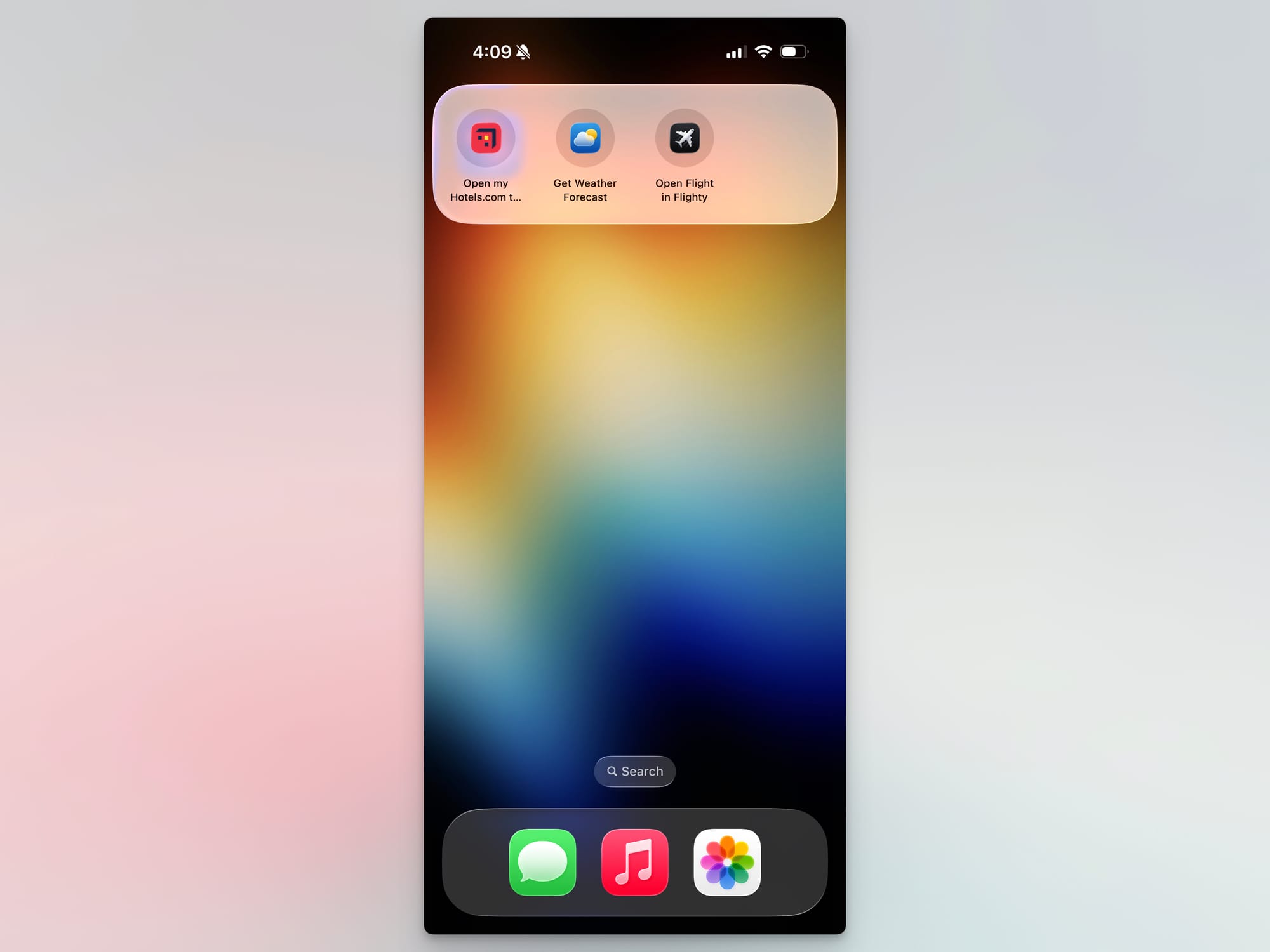
If you want to take this tip even further, there are a lot of ways it can be altered to provide different information. To build a more robust travel toolkit, you can trigger multiple Shortcuts to show several things at once. You can even save your hotel keycard after the trip and reprogram the Shortcut automation to trigger something around your house.
But the first step to building out a robust automation is to first create a few relevant travel Shortcuts.
My suggestion would be things like: Get Weather Forecast, Open Flighty, or Open my Hotels.com trips. You can find Shortcut suggestions for apps on your phone by scrolling down in the Library section of the Shortcuts app.
Some other suggestions would be to start a new ChatGPT chat to ask things about this new city. Open a specific note in the Notes app. Open the Journal app to capture memories. Open the Magnifier app for accessibility help in identifying objects with the camera.
Once you have made the Shortcuts or have them ready. Select the Library icon along the bottom and tap it twice until you get back to a list of all your items. From there, you can tap on the create new folder icon in the top right corner.
I named my folder Travel and gave it a ticket icon.
Set up the automation for the card, but this time instead of selecting a single Shortcut, tap on “Show Folder…”
Select your folder from the list, and you’re all set.