
The iPhone has a hidden feature that can remind you to call someone back
Here's how to set a call-back reminder right in the Phone app in iOS 26.

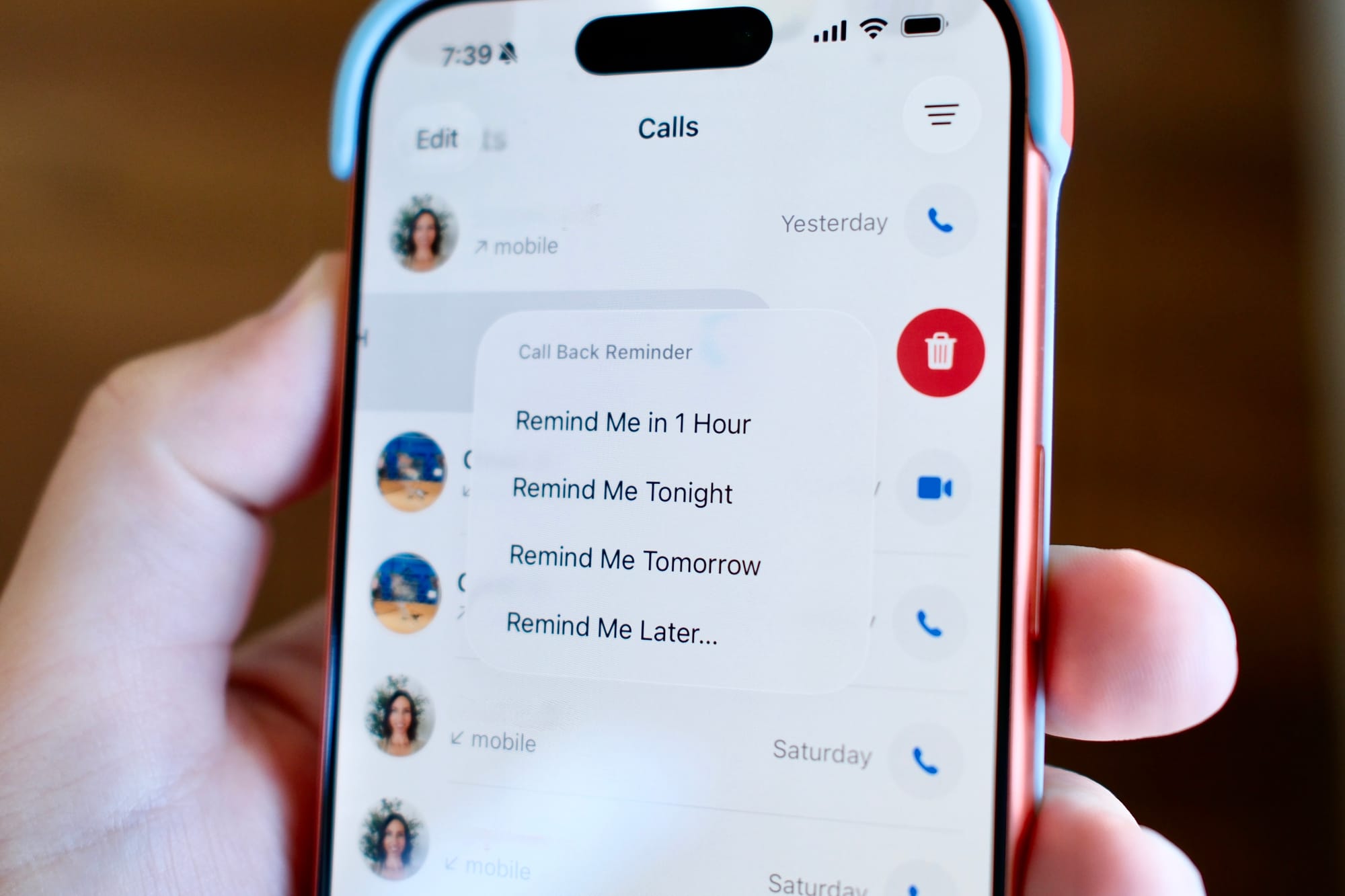
I hate it when I say I’ll call someone back and then just completely forget to do it. Almost always, it’s because of forgetfulness, rather than not having the time. If you’re in this boat, then there’s a feature hiding in the Phone app on Apple’s iPhone that will alleviate this exact problem.
In the latest iPhone software, iOS 26, which was released in 2025, you can swipe left on a recent or missed call and instantly set a reminder to call that person back. If you’re using the new Phone interface, then the reminder will even show at the top of the app.
There’s not much to the feature to use it, but there are a few things to know to make the most of it. Here’s a short overview of how it works, as well as a few other neat tricks for making the most of Reminders—and where you can swipe around.
How to use Reminders in the Phone app
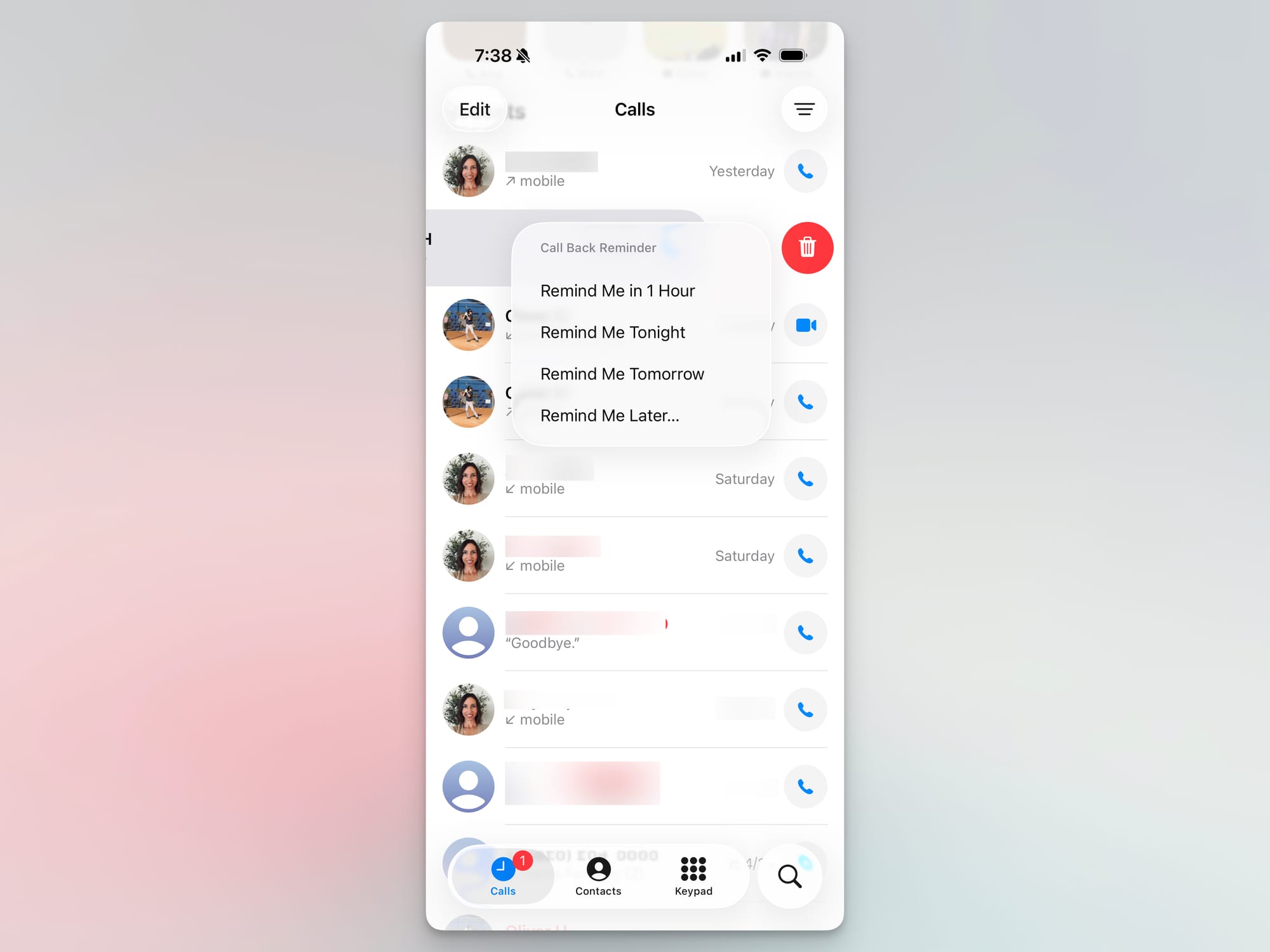
To set up a call-back reminder, all you need to do is open the Phone app and select the Calls section along the bottom row.
Swipe left on one of the incoming, outgoing, missed calls, or voicemails. Tap on the blue clock icon. Select the time you would like to be reminded to call this person: 1 hour, Tonight, Tomorrow, or Remind Me Later.
After you select a time, you should see it appear at the top of the list.
If you swipe left on the contact again, you can either Edit In Reminders or Mark As Complete.
This feature might look like a Phone feature, but as the “edit” mention suggests, it’s really a feature of Apple’s Reminders app. Changing the time or date of the task in Reminders will also change it in the Phone app.
Be aware, this call reminder will show up as a notification from Reminders. It won’t pop up with the Phone icon.
Be reminded of a task in Messages
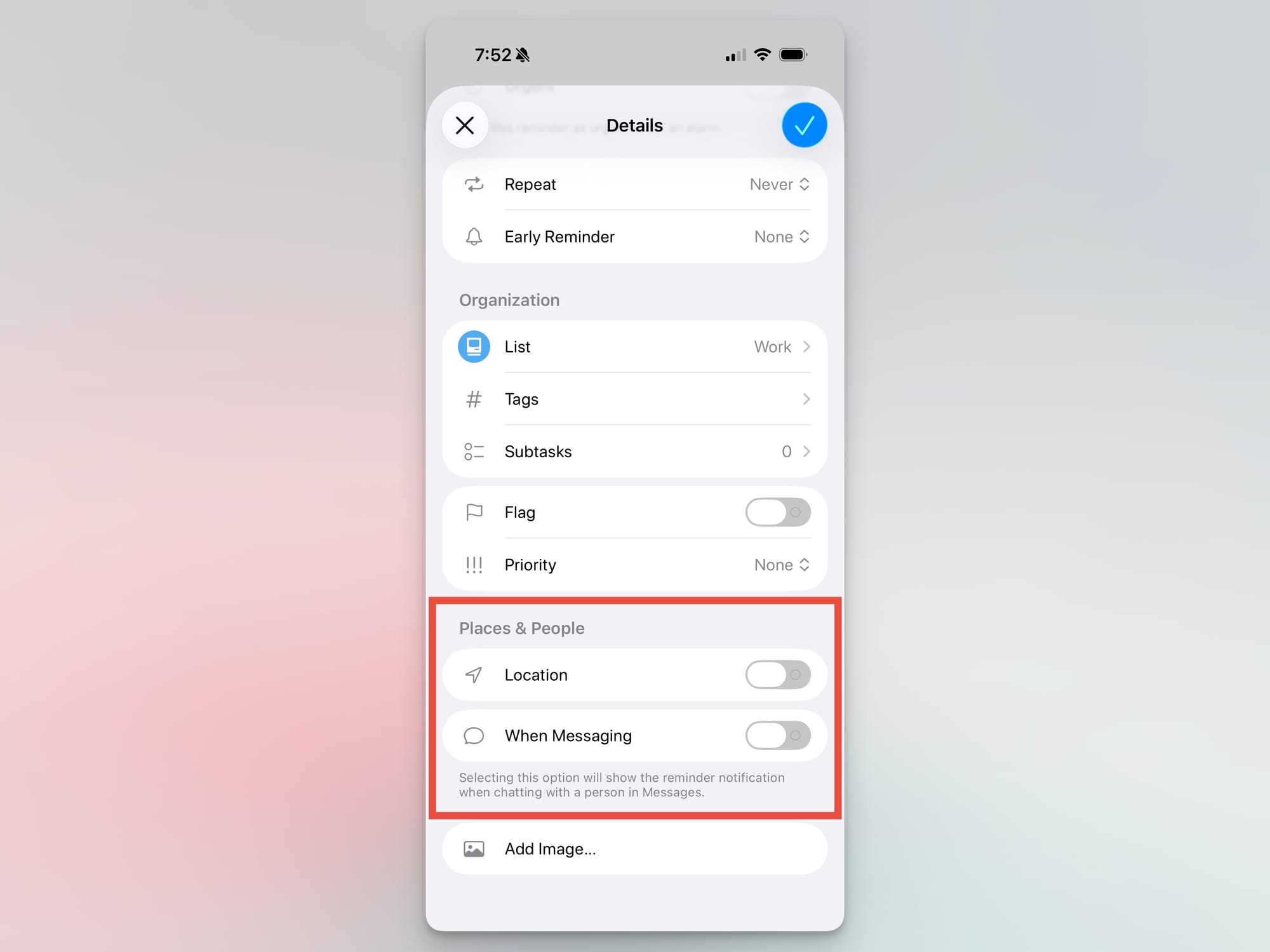
The Phone app integration is neat, but it’s not the only way to remind you when communicating with someone. You can also set a task in Reminders to send you a notification when you’re messaging a contact.
First, create an item in Reminders. Then tap on the circled “i” icon to the right of the new reminder.
Scroll down to Places & People. Tap on When Messaging and select a person from your contacts.
Then, the next time you send this person a message, a Reminders notification should pop up with your task item.
Other swiping features around communication
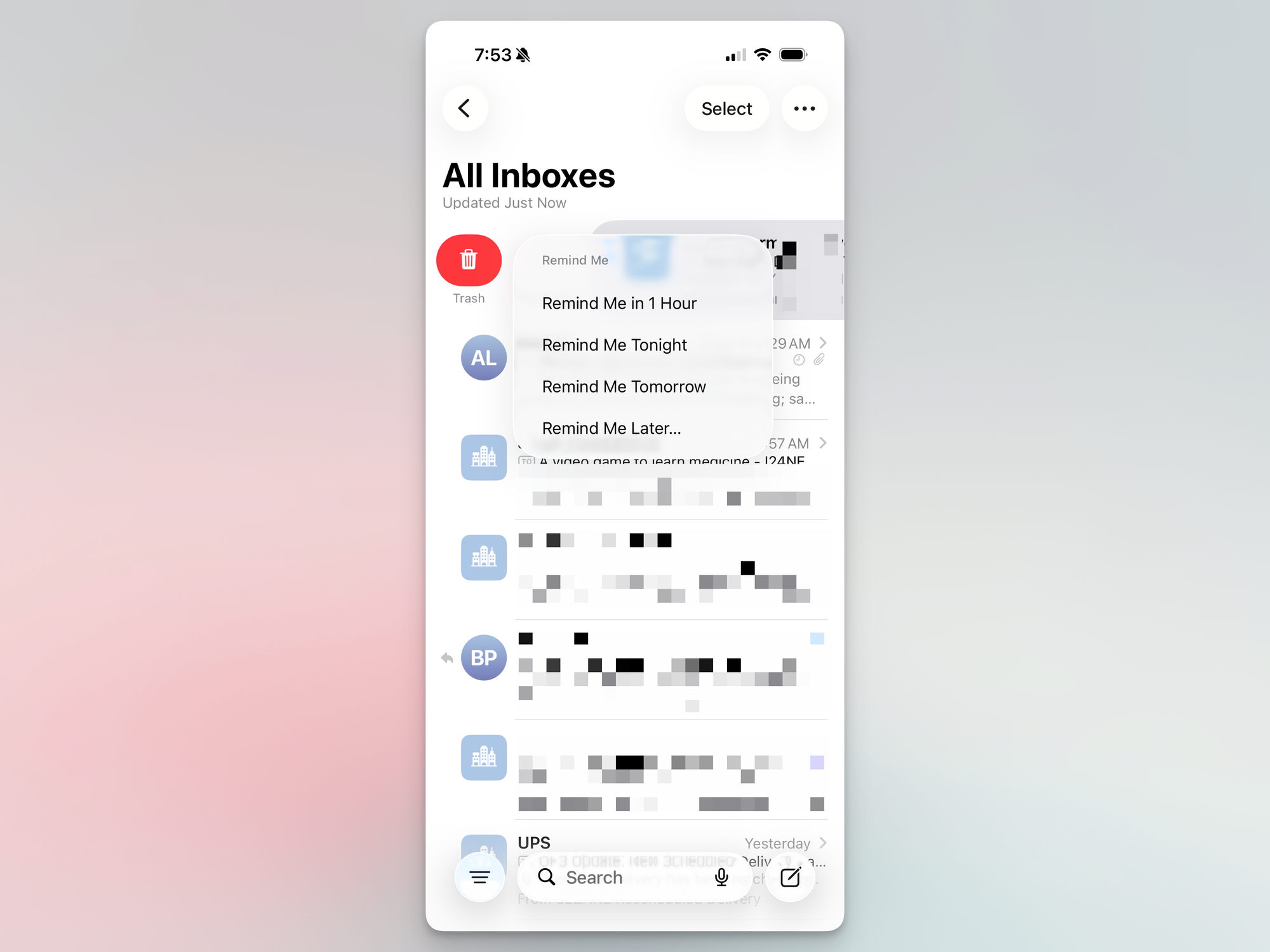
I was reminded of the callback feature recently. But remembering that feature also reminded me that there are other communication apps you can swipe left and right in.
For example, if you use Apple’s Mail app for email on iOS, then you can set a similar reminder for email messages at a later time or date.
I say similar because, although the icon looks the same, if you swipe right on an email, it does not add it to the Reminders app. It will simply keep that reminder in Mail.
If you use Mail on a Mac, you should see a Remind Me section in the left sidebar. This will be synced between your devices that are running the latest software.
(For Gmail app users, you can “Snooze” a message to show up in your inbox later.)
While the Messages app doesn’t share the reminder feature. You can swipe left or right on message threads to reveal more features. Swiping left in iOS 26 will reveal mute and delete icons. If you swipe right, you can mark threads as read or unread faster than opening each one.