
Level up your emoji game on iPhone with these 3 Apple Intelligence tricks
Apple Intelligence can generate new, unique emoji icons. Here are several ways to get the most from the feature.

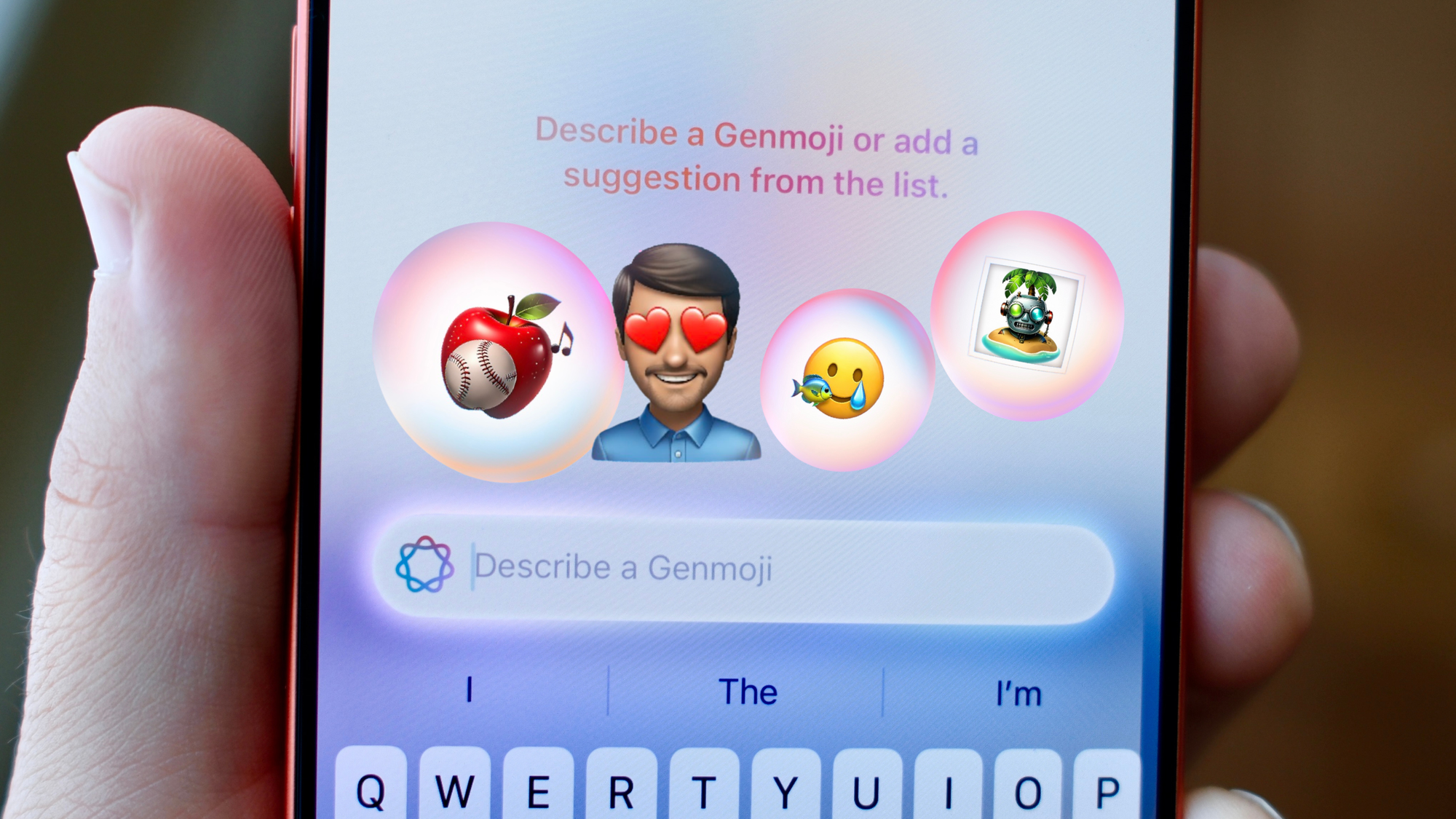
There are a lot of emojis to choose from, but sometimes there still isn't the ideal one. With Apple Intelligence, Apple introduced Genmoji. The feature allows you to create nearly any emoji-style icon with just a simple sentence of words. Type out exactly what you want to see. The feature is neat and genuinely useful. It's built right into the emoji picker, too, for easy access.
While it's easy to create your own Genmoji, did you know you can also see the words someone else used to create theirs? With a few taps, you can uncover the prompt they used. Here's how to do that, along with a few other ways to level up your emoji game, thanks to Apple Intelligence tricks.
See Genmoji prompts people used
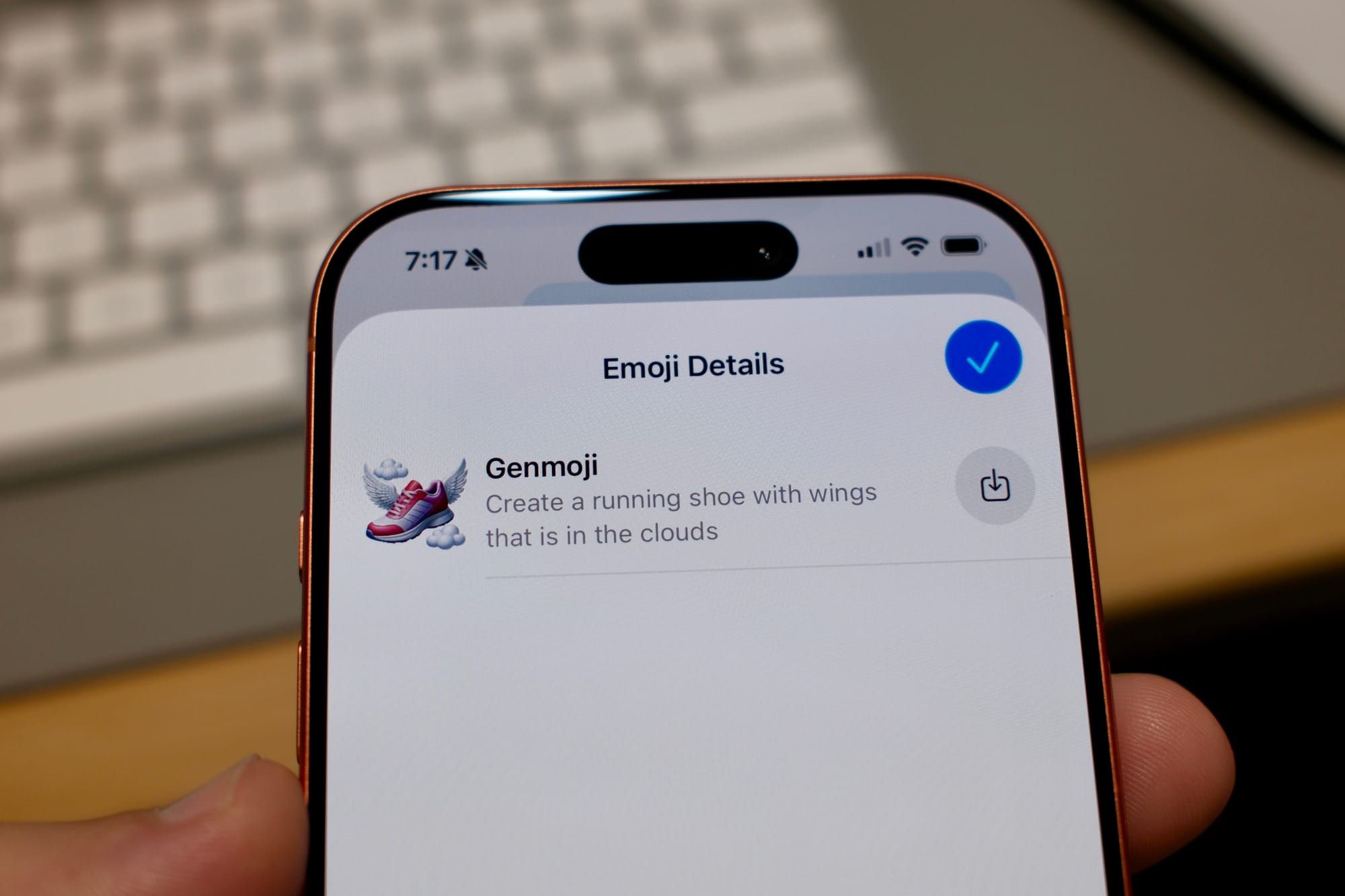
To see the words someone used to create their Genmoji, head to the Messages app.
- Find the Genmoji that someone sent in the list of messages and then long-press on it. A list of items will appear
- Tap on Emoji Details...
- This will bring up a screen showing the Genmoji and the exact words they typed
- The download button with the arrow next to the text will save this Genmoji to your collection so you can use it
Combine multiple emojis into one
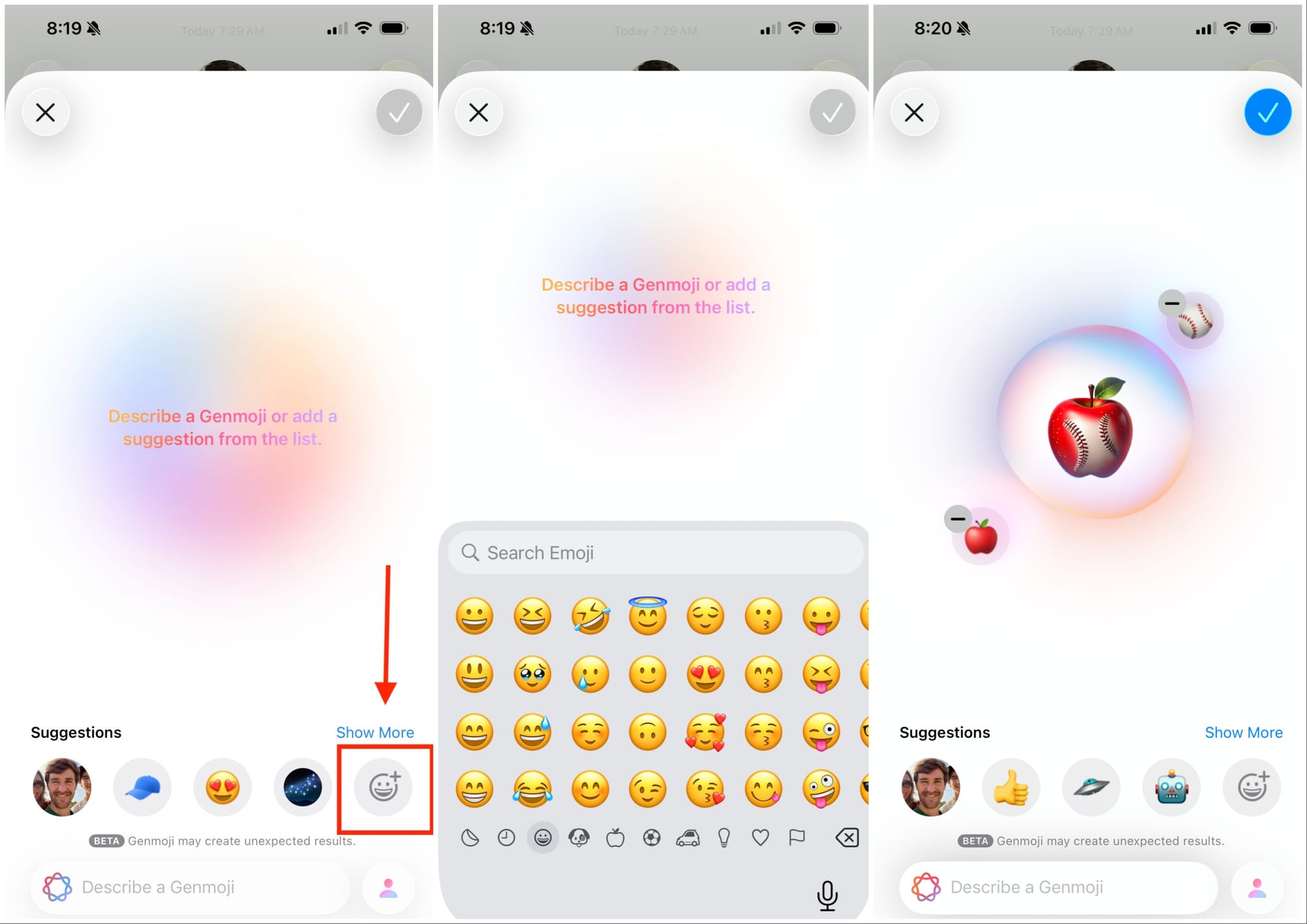
If you'd rather not try to come up with a brand new emoji from scratch, Apple Intelligence will let you mash up several existing emojis into a brand new one.
- Open the emoji picker on the bottom left side of the keyboard
- Select Genmoji
- Then select the grey smiling emoji with a plus sign to choose the ones to add
- Each time you add another one, Apple Intelligence will start adapting the group together
- Then you can scroll right to left to see variations
Mash yourself up with emojis

To take an existing emoji and make it completely personal, you can use yourself as the starting point.
- Instead of starting with an emoji from the Genmoji section, there should be a picture of you in the first spot
- If there's not, you can select the person-shaped icon on the bottom right
- Select your picture and then tap the emoji with a plus sign
- Once you select one emoji, Apple Intelligence will add it to your character
Note: Even though you didn't type the prompt to create this personal Genmoji, you can still use the first tip from above to see what prompt the computer used to create it.