
Apple Music's best new feature is a game-changer
How to use pinning in Apple Music, the best new feature in the app in iOS 26.

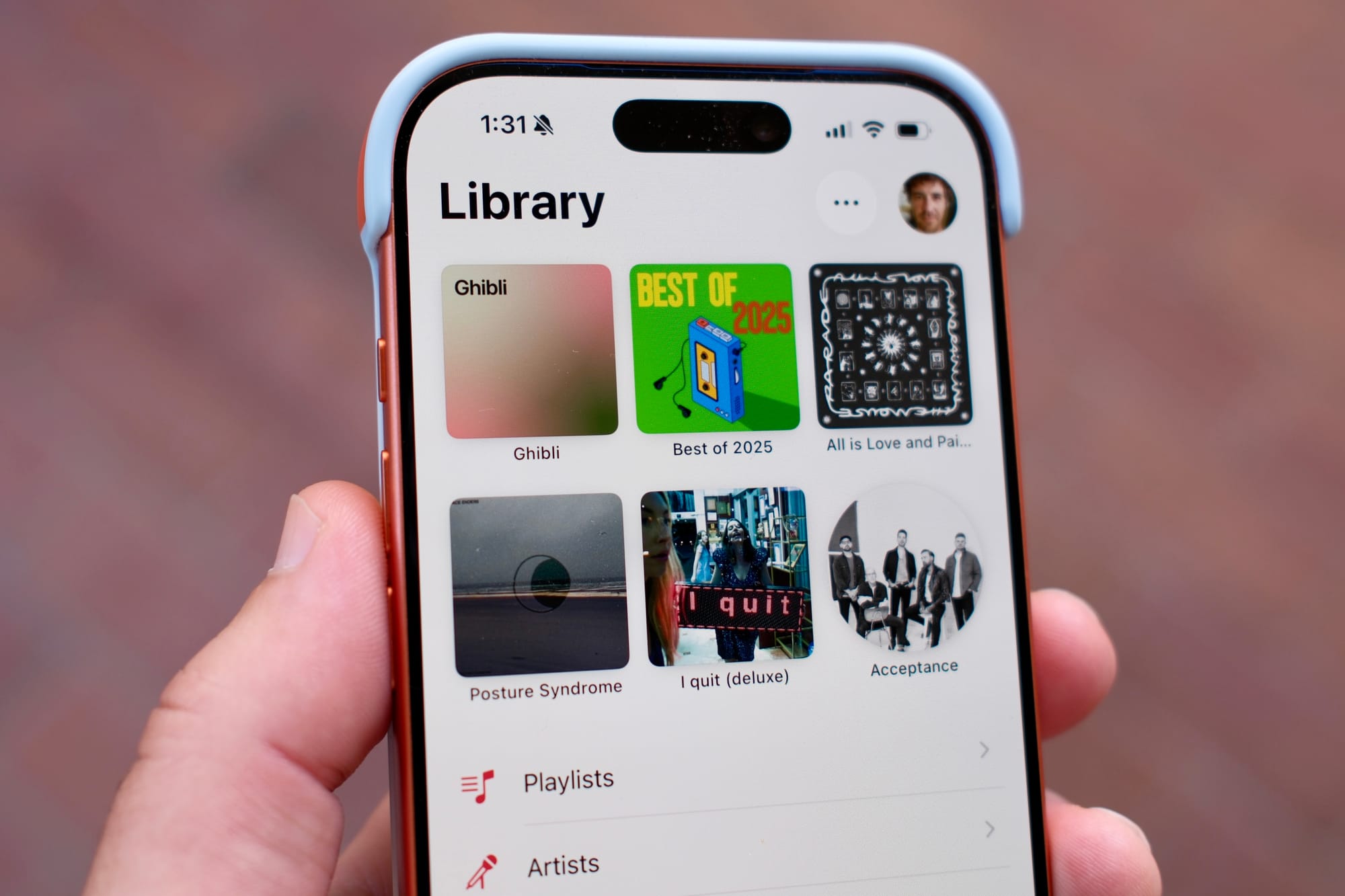
Apple Music hasn’t gone through any radical transformations in years, but that doesn’t mean it hasn’t gotten some meaningful updates. In fact, one new feature that came to the Music app in iOS 26, and all the 26 updates across iPad and Mac, is “Pins” and the idea of pinning.
Now, you can keep your most used albums and playlists at the top of your library and recently added sections without losing sight of them. If you do it on one Apple Music app, the Pins will also sync to your other devices. Here’s why it’s so great and how it works.
Why pinning music is a game-changer
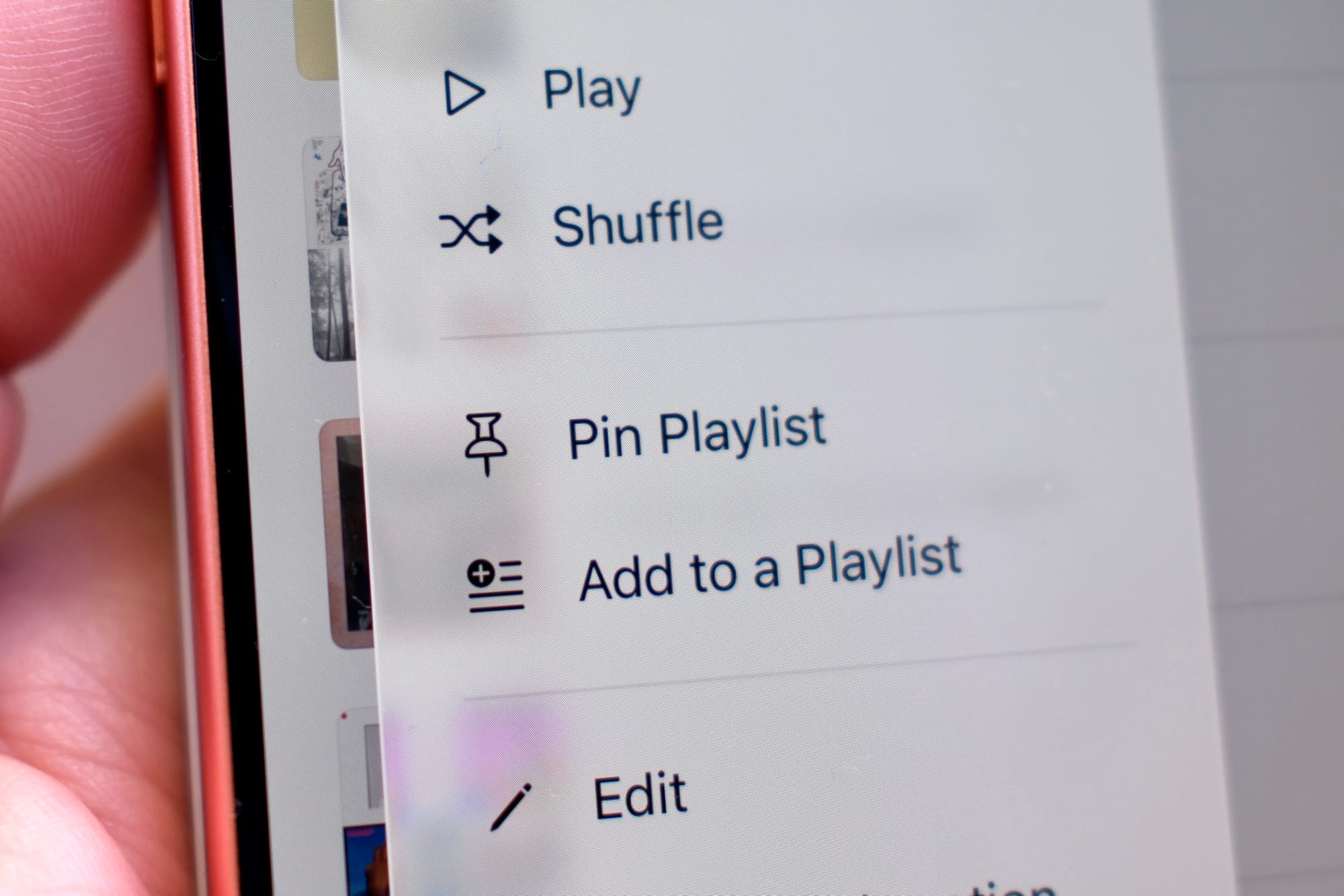
Apple Music has plenty of ways for sorting and organizing songs, albums, and playlists. I particularly like the Recently Added section, which has a running list of music you add to your library. But there is a finite number of recently added items that the app will show. So, if you constantly discover and add new stuff to your library, it can be easy to lose track of them.
With Pins, it doesn’t matter when the pinned item was released—how new or old it is. It always stays at the top and is visible right away.
So far, in my early usage of Pins in Apple Music, I typically pin a new album for a week or two and then unpin it. When it’s new and fresh, I like to keep it top of mind. You can keep several pins, but if you start to add too many, then I think it loses its usefulness.
I’ve also found myself pinning playlists that I’ll need regularly, if only for a day or two. If I’m doing a lot of writing and have a certain collection of instrumental songs, then pinning it for a few days is the easiest way to find it. Even if it just saves me a few taps or clicks, having music pinned has already become a game-changer for me.
How pinning works in various Apple Music apps
One of the great things about using Apple Music to stream songs is that the app is available across lots of products. The most obvious are iPhone, iPad, and Mac. But Apple Music is available on Apple TV hardware, Windows, Android, and in a web browser.
Using Pins on Apple Music on iPhone is the most feature-rich. By default, tapping on a pinned item will take you to that song, playlist, or album. But you can long-press and select Tap Action. This will let you automatically play or shuffle when tapped.
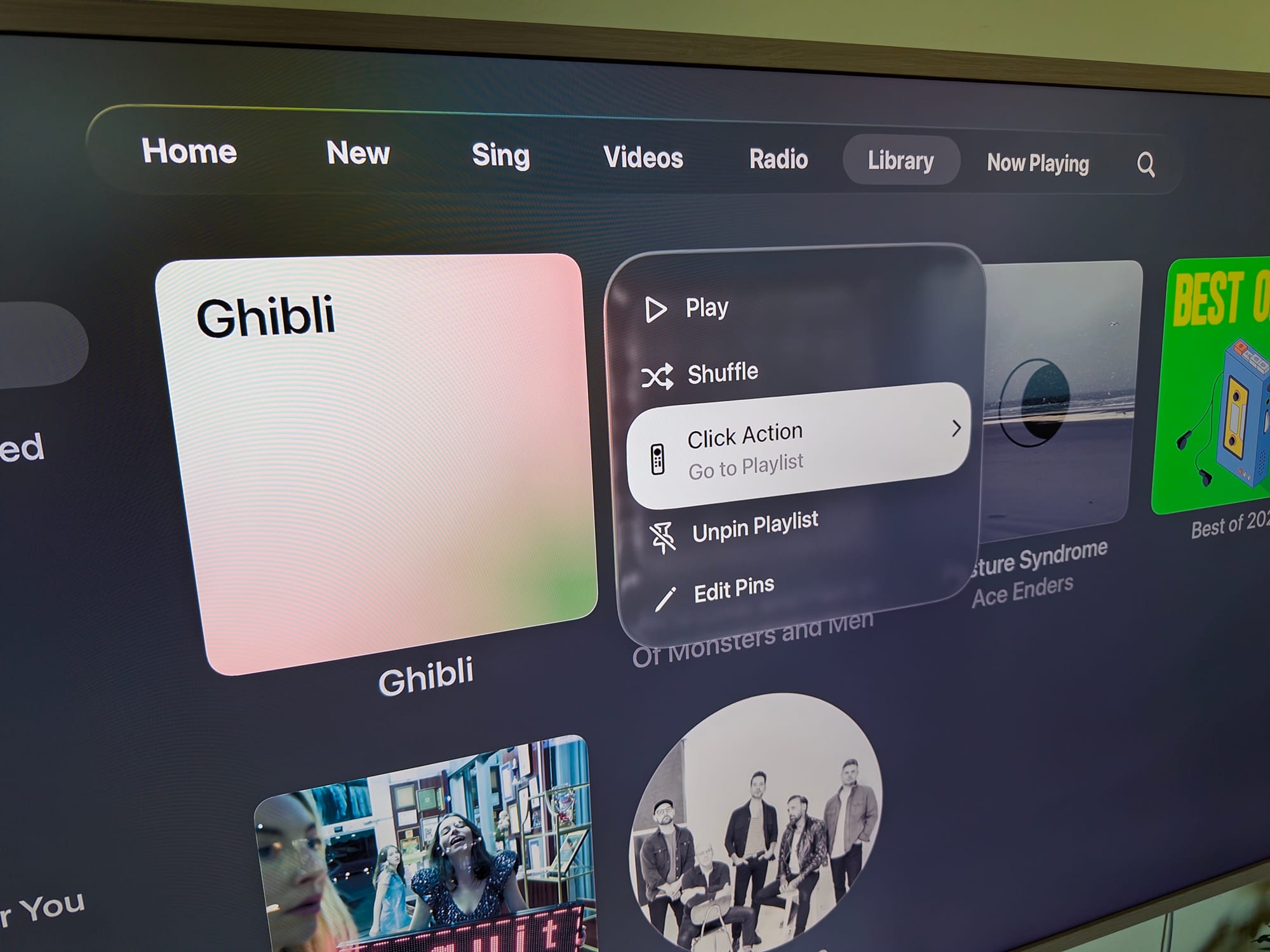
On the Apple TV 4K box, Pins are available in the Apple Music app. If you press and hold the center remote button, you can assign a Click Action—the same ones as on the iPhone.
Interestingly, this Tap Action is not available on the iPad. On Apple’s tablet, tapping on a pinned item will take you to it.
One thing that will work across all devices is pinning an artist. This is a little confusing, however, because you can’t pin an artist from the Apple Music streaming service, even though you can pin albums and playlists from there.
To pin an artist, you’ll need to add them to your library first. Then you can select the three dots (…) in the upper right corner to see and select the option.
On the Mac, you can right-click (Control-click) and get the menu to pin a piece of music. When you do that, it gets added to the left sidebar under the Library section.
The experience using Apple Music Pins in a web browser (music.apple.com) is similar to the Mac. There isn’t a way to change the default behavior of a pinned item. But on the web and on a Mac, you can click and drag the pins around in the sidebar to reorder them.
@thisweekthetrend How to use Pins in Apple Music #apple #tech #howto #music #applemusic
♬ original sound - ThisWeekTheTrend